 English
  Deutsch

Encyclopedia Pro is the supercharged state of the art lexicon and glossary WordPress premium plugin which enables you to create, organize and present a knowledge base in a breath – completely coalesced with your WordPress and fully compatible with all the cool publishing tools you like. You will love it! Enjoy the easy way to manage your contents with WordPress in combination with a whole bunch of smart features like automatically cross linking in your websites contents.
Features
- Manage and organize your items as encyclopedia, lexicon, glossary, Wiki, dictionary or knowledge base
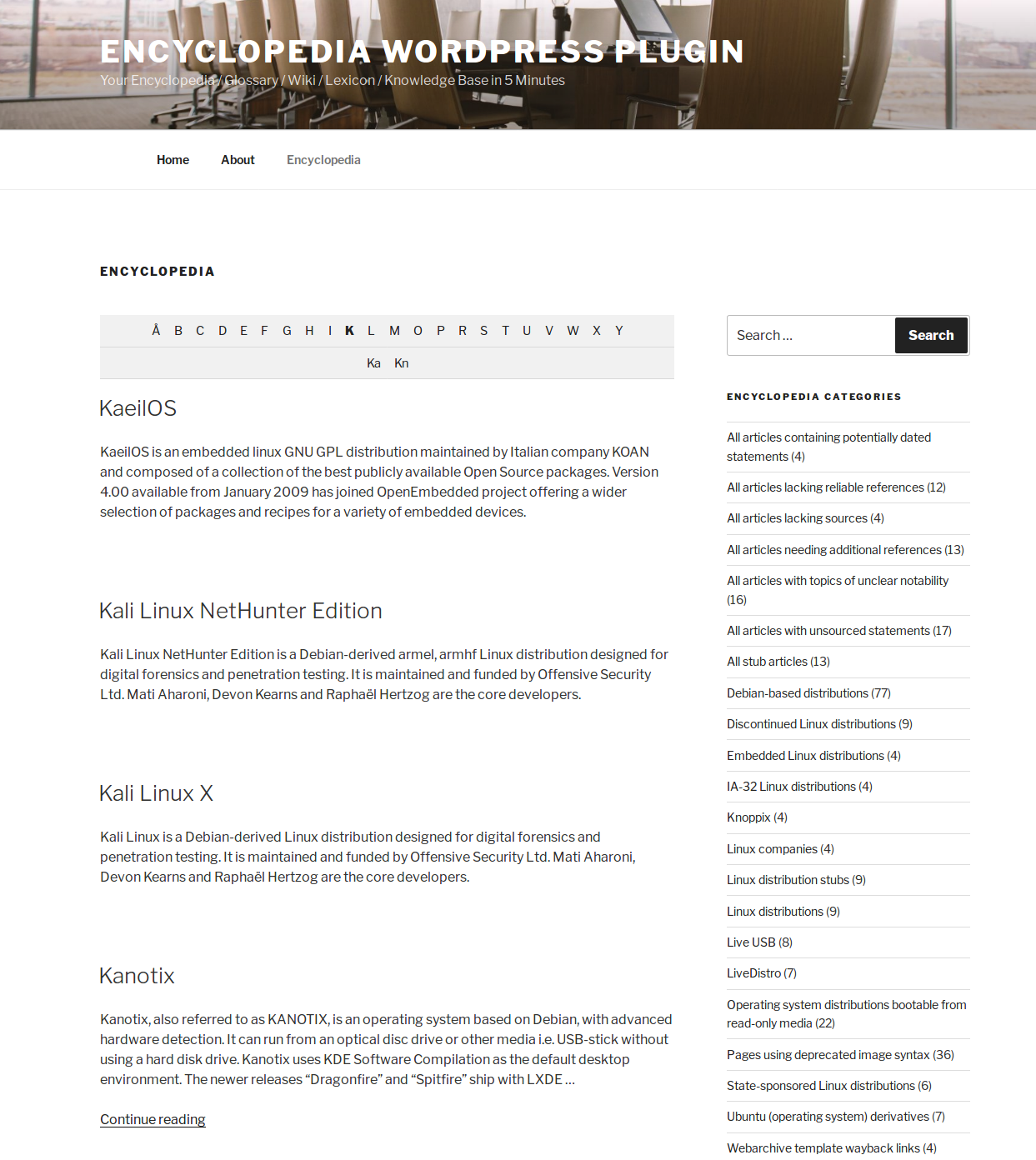
- Automatically generated index page with all items, sorted alphabetically, with prefix filter on top (optional)
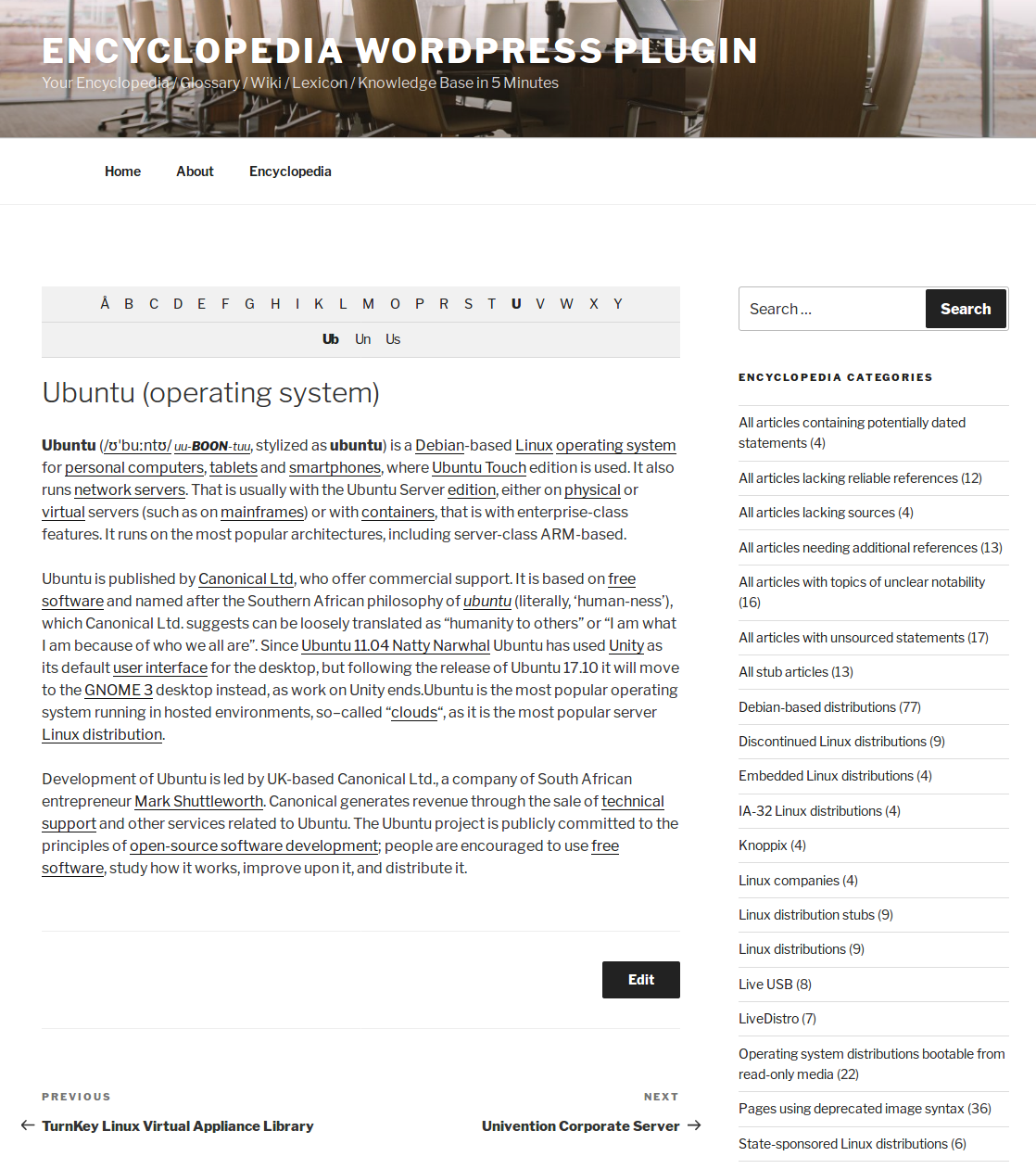
- Every item has its own page with unique URL
- SEO conform URL structure for all kind of pages
- Tags and categories to classify your items (both tags and categories are disjunct from your post tags and post categories)
- Prefix filter (A|B|C...X|Y|Z) above single view and archive index page which allows a letter-by-letter item filtering
- Works with Latin, Arabian, Russian, Chinese, Turkish, and all other UTF-8 compliant languages!
- Automatic association of related items (based on common tags)
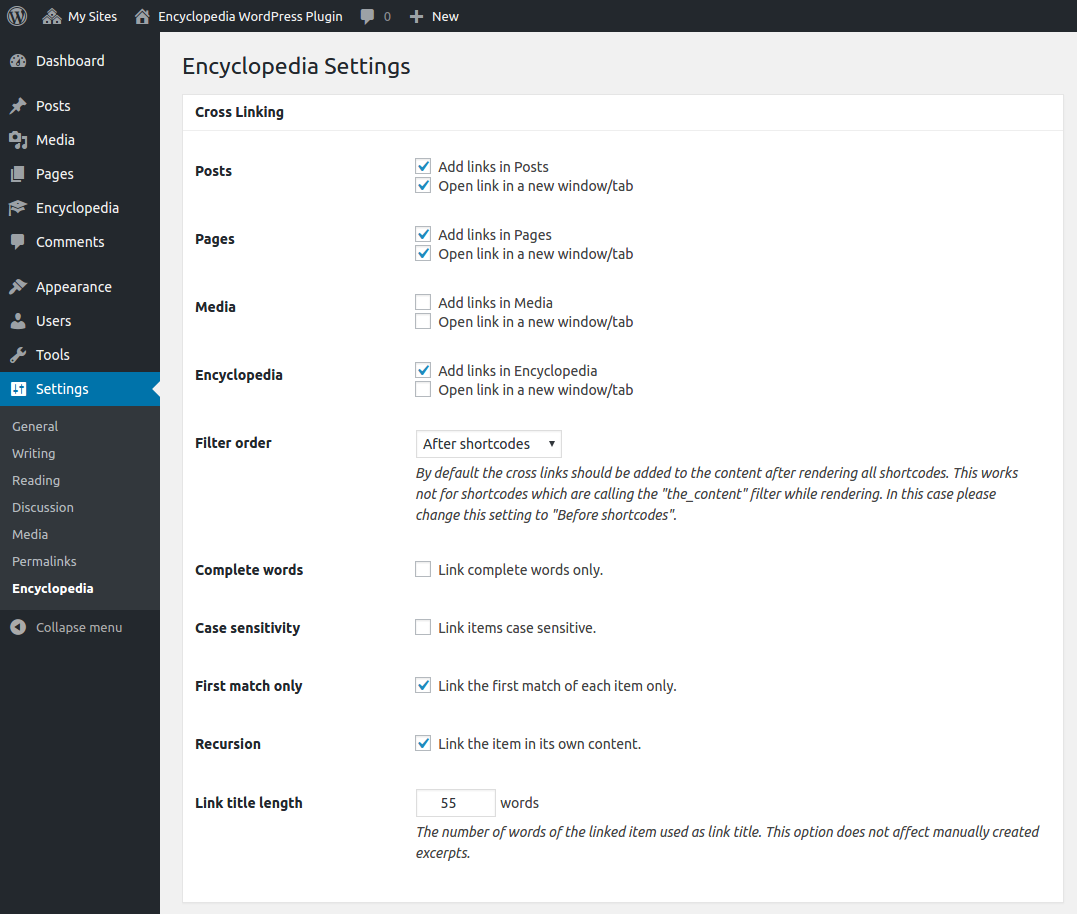
- Automatic linking of all your items appearing in your post and page contents (cross linking)
- You can define the target of the links of the automatically linked items
- Selectable content types (pages, posts, media, custom posts types) in which the items should be linked automatically
- Completely translatable - .pot file is included
- Supports WPML flawless and enables you to create a multilingual knowledge base
- Supports the WordPress theme template hierarchy and the parent-child-theme paradigm
- Supports user defined HTML templates
- Supports revisions for your items – perfect if you have multiple authors
- Supports item comments
- Supports featured images as thumbnails
- Supports excerpts the same way you already know from regular posts
- Supports WordPress user rights and capabilities
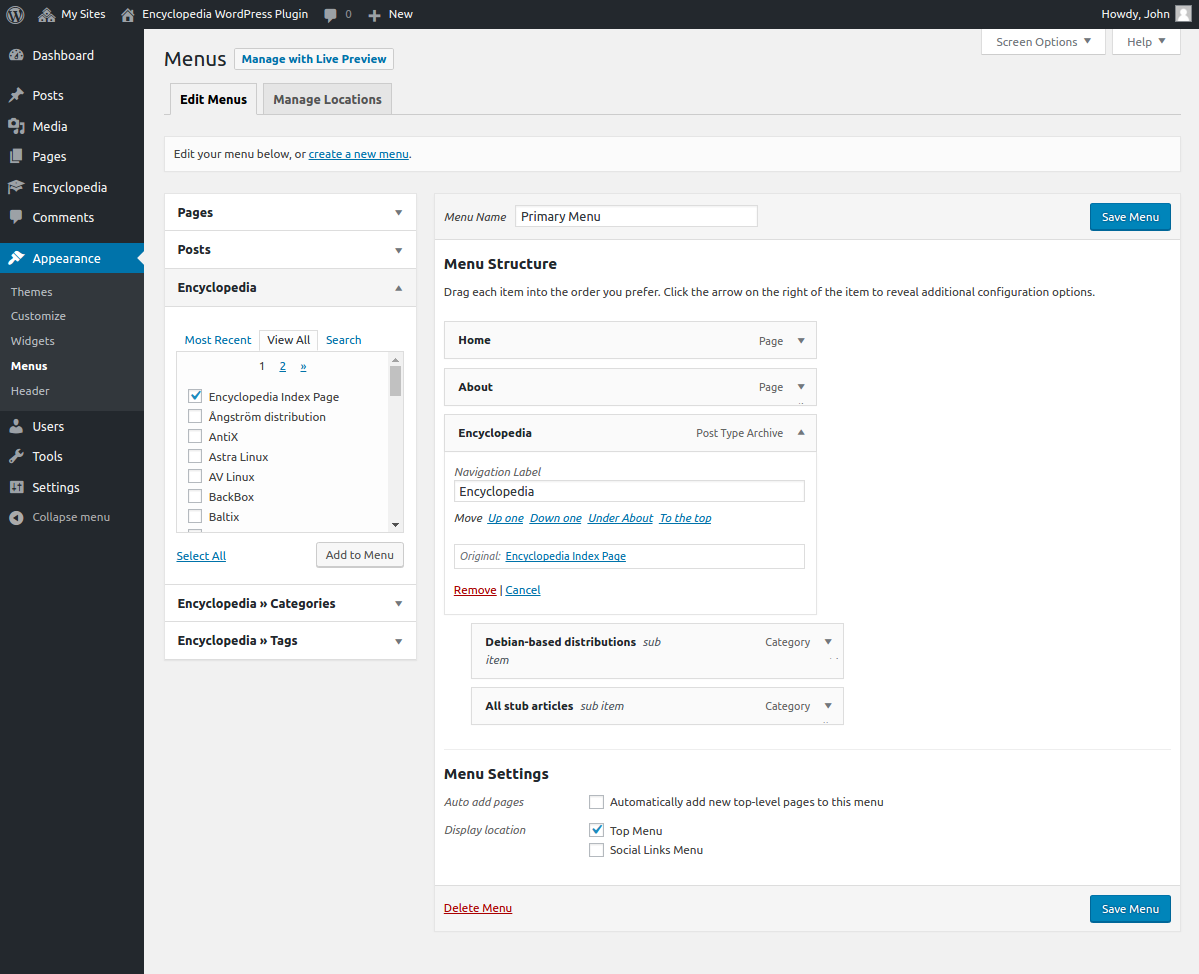
- Supports the WordPress menus and enables you to add all components of your encyclopedia to any menu
- Supports RSS feeds for the index page and for the comments
- Clean and intuitive user interface
- Flawless integration of audio, video, multimedia elements and shortcodes in the content of your items
- Search function for exclusive searching in encyclopedia or glossary items
- Widget to display the exclusive encyclopedia search in the sidebar
- Auto-complete and item suggestions for search phrases
- Automatic redirect of a user to the match if the user searches for an exact item title
- Widget to display the items in your sidebar
- Widget to display the tag and categories of your Encyclopedia in the sidebar
- Includes a bunch of filters to give you the control of the behavior of this piece of code
- Import and export directly via the official "WordPress Importer" by Automattic
- Works great with WordPress Multisite
- Personal one-on-one real-time support by the developer
- No ads or branding anywhere - perfect white label solution
Free lite version
In the Lite edition of the plugin you can take a look around and you try out everything. On several places in the plugin you will find a notice that this function is included in the premium version only. The number of items is limited to twelve. For the Lite version you can use the support forums on WordPress.org. You can find the Download here.
Screenshots


Compatibility
Linux-Server; WordPress 5.9 or greater; PHP 7.4 or greater; PHP Multibyte String extension; SQL compatible database
Introduction
Installation
- Download the Lite or Pro version of this extension. The downloaded file should to be a .zip file. If your browser or operating system offers you a directory as download you need to re-zip it on your own or you need to find a way to get the .zip file. Please consider buying the support package. We will install the plugin for you on your server.
- Go to your WordPress Dashboard and log in with an administrator account.
- Please deactivate all other versions of the plugin. Especially deactivate the Lite version if you want to install the Pro version. Your already created data will not get lost when you deactivate the plugin!
- Please navigate to Plugins -> Add New -> Upload.
- Then please upload the before downloaded .zip file of this extension.
- When the upload was successful, WordPress will offer your to activate the plugin.
- In a final step please navigate to the options page:
- Enter your license credentials to get the updates directly via the dashboard.
- Study the documentation attentively!
Create and edit items
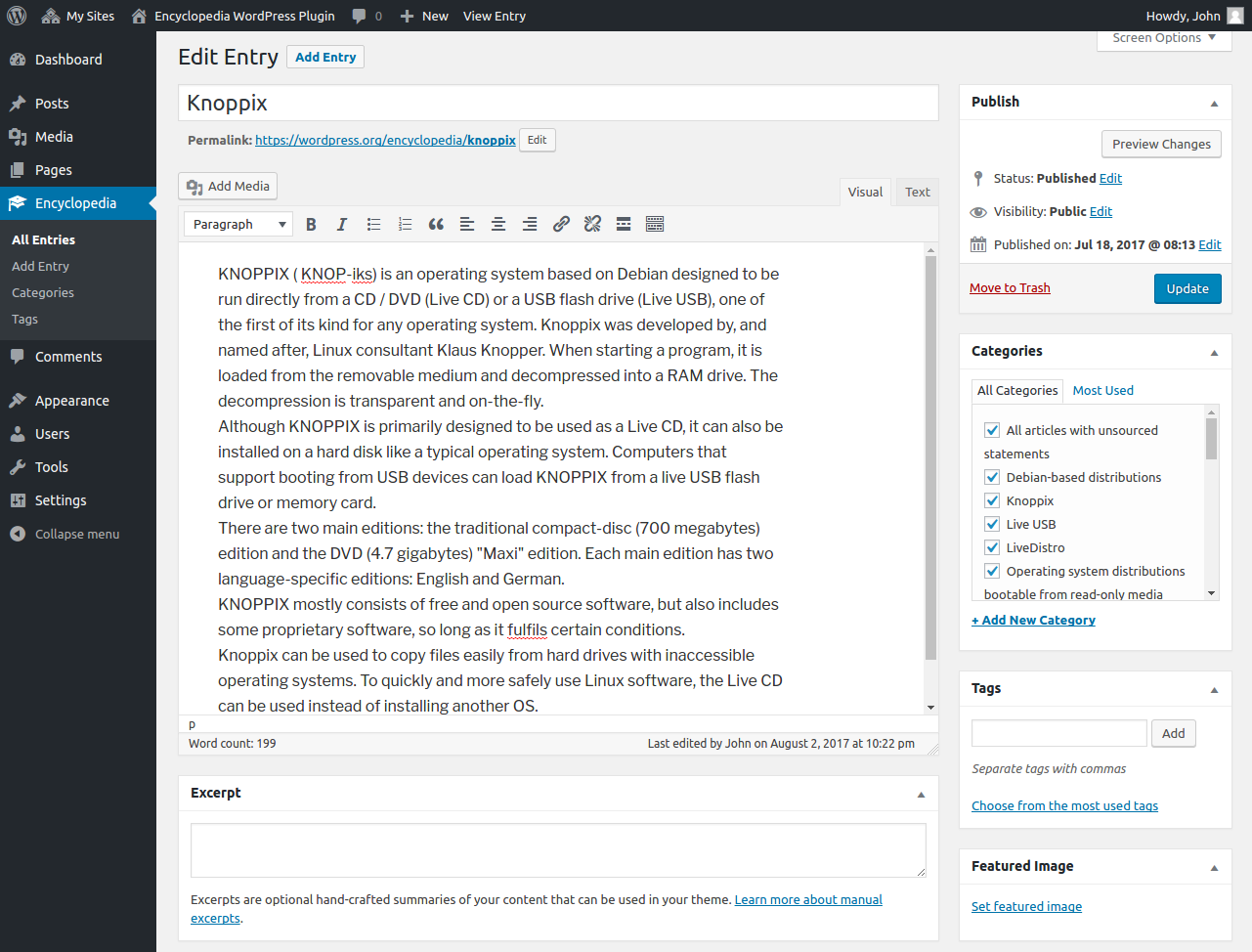
After you have activated the encyclopedia feature you can find a new menu entry in your dashboard: "Encyclopedia (or something like this, depends on your settings). Now you can click on "Add Entry" to start fill your new knowledge base with contents. The interface is willfully adapted from the original WordPress post and page interface. This way it will be very easy for you to step in.
Taxonomies
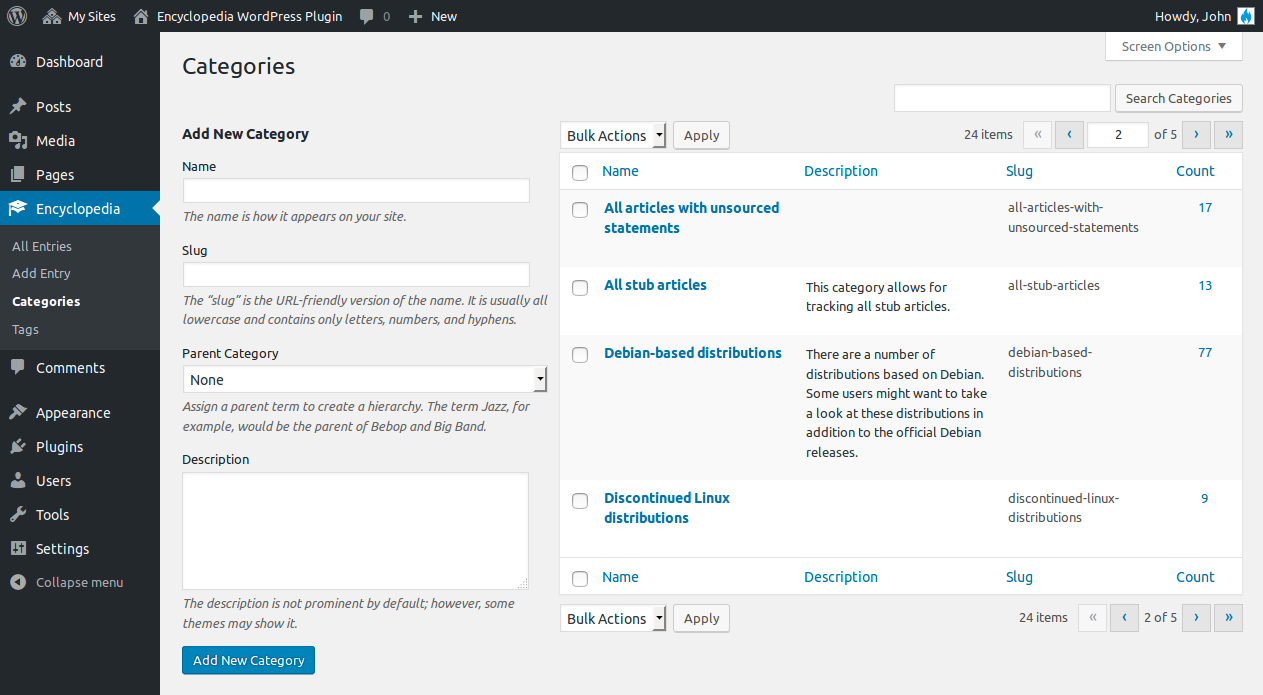
Taxonomies for encyclopedia items have the same behavior like the post tags and categories you already know from usual posts. For the encyclopedia you can use categories to classify your items. Tags are necessary if you want to display related items somwhere.
To activate taxonomies you need to go to the options page and scroll down to the "Taxonomies" box. There you can activate and deactivate the categories and tags for the encyclopedia post type. Do not forget to scroll to the button and hit the "Save changes" button.
The management of the taxonomies is as easy as the management of the post categories.
Related Items
Items in your encyclopedia can be "related" if they have common tags. Two items are more related if they have more common tags.
On the options page you can setup that related items should appear automatically above or below an encyclopedia items content. If you deactivate this option you can display the related items manually through adding the [encyclopedia_related_items] shortcode to the items content. (With the "number" attribute you can set a limit of how many related items should be shown.)
Capabilities
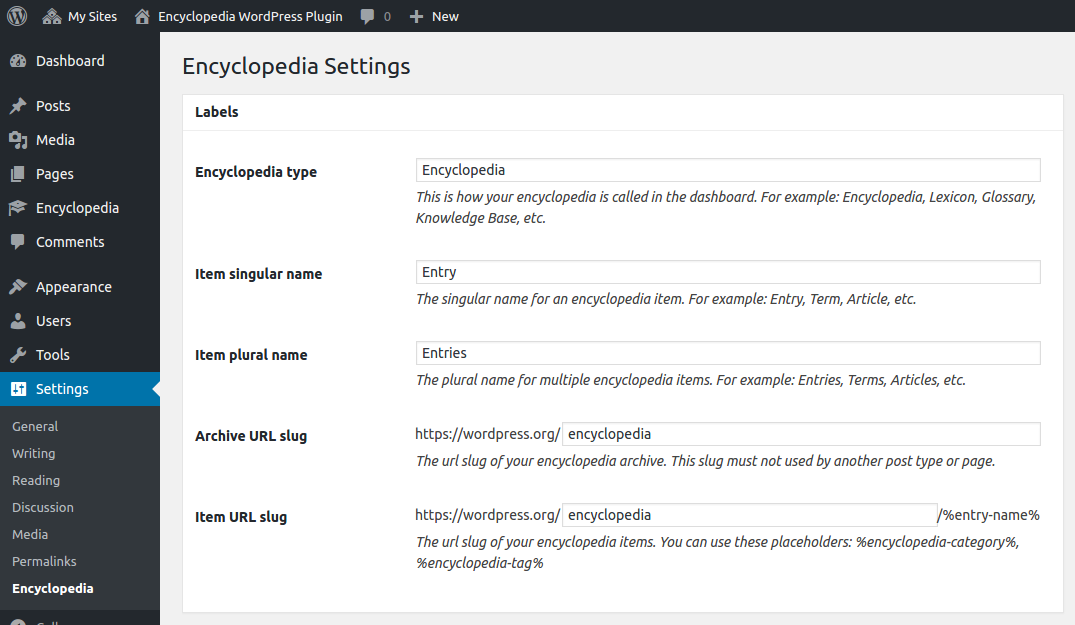
Encyclopedia Pro uses the WordPress embedded user rights system to control the access to items, taxonomies and options. You can change these settings directly on the options page without any external plugin. By default nobody has any right, expect the administrator of your installation - the administrator can see and change the options page. So the first step after activating the plugin should be the capability configuration. Go to your Dashboard -> Settings -> Encyclopedia. Scroll down to the "User rights" options box and open it up with a click on the box title. Then you can set the available capabilities for all existing user groups.
WordPress Menus
Nothing is more awesome than a plugin which plays well with all the cool WordPress features. You can add all encyclopedia items and taxonomies to your custom menus. Go to your Dashboard -> Appearance -> Menus.
Encyclopedia archives
The encyclopedia archives are the index pages which lists all your items. Every encyclopedia index page will automatically be sorted alphabetically and gets a great letter navigation at the top. The letter navigation will be visible only if there are two or more choices for the user. Encyclopedia Pro generates one index page for every category and for every tag. You can find the URLs to these archives in the edit category/edit tag screen in your dashboard.
Template files
All plugin outputs can be changed via user defined HTML templates. Just create the templates you want to overwrite inside your theme folder (no matter if parent theme or child theme). You can find the default templates in the plugin folder in "templates/". Attention: Do not change any plugin files at any time. You will lose you modifications after an update!
| Template file | Task |
|---|---|
| archive-encyclopedia.php* | Renders the archive page for all encyclopedia items. |
| taxonomy-encyclopedia-tag.php* | Renders the tag archive for each encyclopedia tag. |
| taxonomy-encyclopedia-category.php* | Renders the category archive for each encyclopedia category. |
| search-encyclopedia.php* | Renders the search results for searches inside the encyclopedia index. |
| single-encyclopedia.php* | Renders the single view for each encyclopedia item. |
| encyclopedia-prefix-filter.php | Renders the prefix filter above the encyclopedia item archive and single view. |
| encyclopedia-related-items.php | Renders the list of related items above/below the single view of each encyclopedia content. |
| encyclopedia-related-items-widget.php | Renders the "Related Items" Widget. |
| searchform-encyclopedia.php | Renders the "Encyclopedia Search" Widget. |
| encyclopedia-items-widget.php | Renders the "Encyclopedia Items" Widget. |
* These templates could be placed in your theme or child theme. They are not part of the plugin and they are individual for each theme.
Widgets
Taxonomies
This widget displays all non empty encyclopedia taxonomies as list.
Taxonomies (cloud)
This widget displays all non empty encyclopedia taxonomies as word cloud.
Items
This widget displays all encyclopedia items as list.
Related Items
This widget displays all related items of the current one as list. You should use this widget in a sidebar which is visible in the single view of an encyclopedia item.
Search
The Search Widget enables the user to search exclusively in the encyclopedia. The Widgets uses an auto complete javascript feature to help the user searching for right phrases.
Plans & Pricing
One year of updates and personal 1-on-1 support for one website. If you already bought the plugin this package will add another year of updates and support to your account.
- Encyclopedia Pro WordPress Plugin
- Lifetime usage license for Encyclopedia Pro without any additional costs
- Updates for 365 days
- Support for 365 days
- Personal support by the developer
One year of updates and personal 1-on-1 support for up to five websites. If you already bought the plugin this package will add another year of updates and support to your account.
- Encyclopedia Pro WordPress Plugin
- Lifetime usage license for Encyclopedia Pro without any additional costs
- Updates for 365 days
- Support for 365 days
- Personal support by the developer
One year of updates and personal 1-on-1 support for up to fifteen websites. If you already bought the plugin this package will add another year of updates and support to your account.
- Encyclopedia Pro WordPress Plugin
- Lifetime usage license for Encyclopedia Pro without any additional costs
- Updates for 365 days
- Support for 365 days
- Personal support by the developer


Published in September 2012
Latest update in May 2026
Made in Germany
approx. 38200+ active installs
By Dennis Hoppe
Premium developer item